Every physical product, from an everyday electric kettle to an industrial drone, is the sum of individual parts, raw materials, fasteners, sub-assemblies and packaging. Before initiating manufacturing, scaling production or calculating accurate unit costs, maintaining absolute clarity over every single component is mandatory.
This requirement is fulfilled by a Bill of Materials (BOM).
A Bill of Materials serves as the master blueprint and centralized recipe for manufacturing a product. Using a structured BOM template in Excel or Word minimizes costly production errors, streamlines supply chain communication and keeps manufacturing projects within budget.
What is a Bill of Materials (BOM) Template?
A Bill of Materials (BOM) template is a structured document that itemizes every raw material, part, sub-assembly, intermediate component, and consumable required to build, manufacture, or repair a physical product. Beyond a simple list of parts, a comprehensive BOM template includes operational details such as:
- Item Identification: Unique stock-keeping unit (SKU) numbers, part numbers, and descriptive names.
- Quantities & Units of Measure: Specific measurements (e.g., pieces, grams, meters, liters) necessary to construct a single finished unit.
- Costing Metrics: Individual unit costs, subtotal costs, and total extended costs.
- Sourcing Data: Vendor names, lead times, and procurement flags (make vs. buy decisions).
- Assembly Hierarchy: Structural relationships showing how individual sub-assemblies fit into the primary assembly.
In short, a BOM template converts complex product architecture into an actionable, readable framework for procurement managers, shop-floor operators, design engineers, and financial analysts.
The Core Types of Bill of Materials (BOM) Templates
Different departments interact with a product at distinct stages of its lifecycle. Selecting the appropriate BOM format ensures relevant teams receive targeted, actionable data.
1. Engineering Bill of Materials (EBOM)
Created during the design and development phase by CAD engineers, the Engineering BOM (EBOM) focuses on product structure according to design specifications. It lists components, parts, and sub-assemblies as designed, often omitting packaging materials or shop-floor consumables.
2. Manufacturing Bill of Materials (MBOM)
The Manufacturing BOM (MBOM) translates design intent into real-world production. It contains all physical components from the EBOM plus items necessary to assemble the product—such as adhesives, packaging materials, safety tags, and assembly instructions. It also reflects step-by-step assembly workflows.
3. Configurable Bill of Materials (CBOM)
For products offered with multiple customizable options (such as personal computers or automotive vehicles), a Configurable BOM (CBOM) dynamically tracks specific component combinations based on customer selections.
4. Single-Level vs. Multi-Level BOMs
- Single-Level BOM: A simple, flat list that displays all parts at a single level of relationship. Ideal for uncomplicated products with few components.
- Multi-Level BOM: A hierarchical structure displaying relationships between parent assemblies, sub-assemblies, and child parts. Essential for complex hardware and machinery.
5. Modular and Equipment BOMs
- Modular BOM: Groups parts into reusable modules or sub-assemblies, which makes it easy to see which sub-parts each module needs and to reuse modules across product variants.
- Equipment BOM: Lists the machines, tools and fixtures needed to make the product rather than the materials that go into it.
Key Components of an Effective BOM Template
To prevent stockouts, miscalculated margins, or assembly line bottlenecks, an industry-standard BOM template should contain the following fields:
| Field Name | Description | Purpose |
| BOM Level | Numerical designation (e.g., Level 1, Level 2) indicating assembly hierarchy. | Clarifies where each part fits within the complete structure. |
| Part Number | A unique internal identification code assigned to each item. | Prevents misidentification during inventory pulls. |
| Part Name | The standard, descriptive title of the component. | Aids quick recognition for assembly teams. |
| Phase / Status | Indicates whether a part is active, in review, or obsolete. | Manages design revisions and component lifecycle. |
| Quantity | The exact number of units needed per final product. | Ensures accurate purchasing and inventory planning. |
| Unit of Measure (UOM) | Standard measurement term (e.g., Each, Kg, Meters, Sets). | Avoids procurement scale misunderstandings. |
| Procurement Type | Denotes whether the item is manufactured internally or purchased externally (“Make” or “Buy”). | Drives production scheduling and supplier purchasing. |
| Unit Cost & Total Cost | Cost per single unit multiplied by quantity. | Tracks product margin and overall cost of goods sold (COGS). |
How to Create and Use a BOM Template in Excel or Word
Follow these step-by-step guidelines to set up a robust BOM tracking system for your project:
- Define Product Scope: Clarify whether you are building a Single-Level or Multi-Level BOM.
- Assign Unique Part Identifiers: Avoid duplicate part numbers. Standardize alphanumeric conventions across all inventory items.
- Establish Assembly Hierarchy: Group lower-level components under their parent sub-assemblies.
- Input Accurate Cost & Vendor Data: Contact suppliers to confirm current bulk pricing, minimum order quantities (MOQs), and lead times.
- Implement Version Control: Record revision numbers and update logs directly within the template file header to maintain data integrity across design revisions.
- Add Supporting Details: Include supplier names and contacts, a short description of each part’s function, and, where useful, a picture of the part, supplier approval status and an expected waste or scrap percentage.
Sample BOM: Simple Desk Lamp
| Level | Part No. | Description | Qty | Unit Cost | Total |
| 0 | LMP-100 | Desk Lamp (finished product) | 1 | – | 14.70 |
| 1 | BAS-110 | Base assembly | 1 | – | 6.20 |
| 2 | BAS-111 | Weighted steel base plate | 1 | 4.50 | 4.50 |
| 2 | BAS-112 | Rubber feet | 4 | 0.25 | 1.00 |
| 2 | BAS-113 | Mounting screws | 4 | 0.175 | 0.70 |
| 1 | ARM-120 | Adjustable arm | 1 | 3.80 | 3.80 |
| 1 | ELC-130 | LED head with cable & switch | 1 | 3.90 | 3.90 |
| 1 | PKG-140 | Box & instruction sheet | 1 | 0.80 | 0.80 |
The Level 1 items add up to the Level 0 total (6.20 + 3.80 + 3.90 + 0.80 = 14.70), which is the material cost per lamp. Figures are illustrative only.
Bill of Materials (BOM) Templates in Excel & Word
Detailed Bill of Materials (BOM) Template
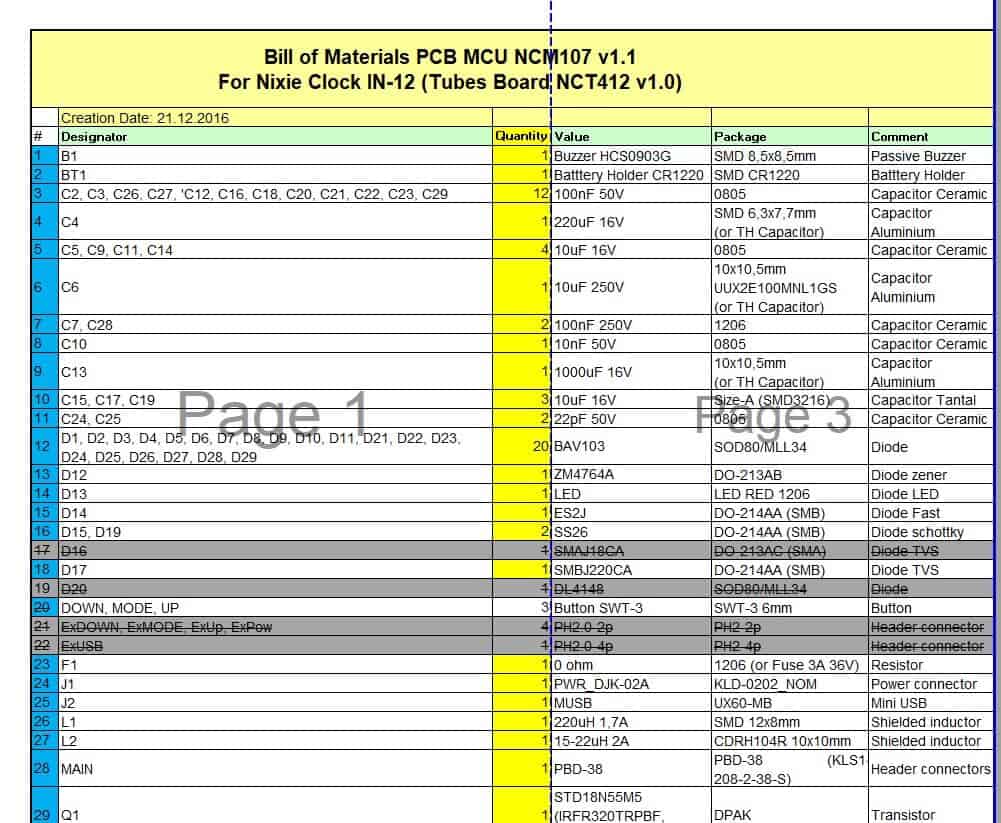
File Size: 14 KB
File Type: MS EXCEL
Generic Bill of Materials (BOM) Template
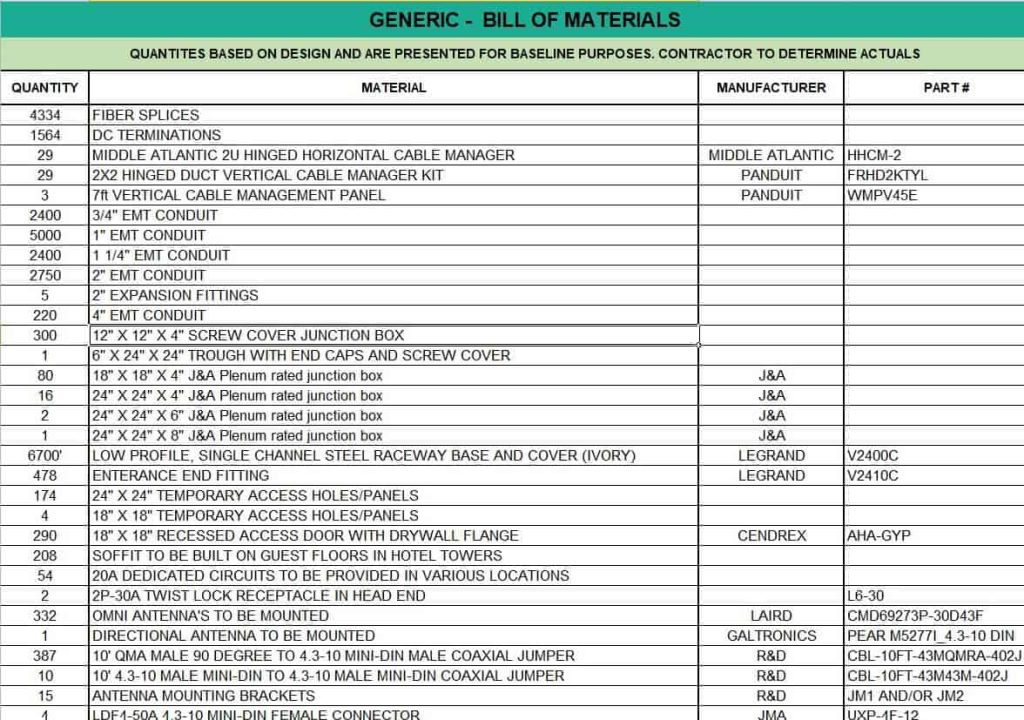
File Size: 12 KB
File Type: MS EXCEL
Special Bill of Materials (BOM) Template
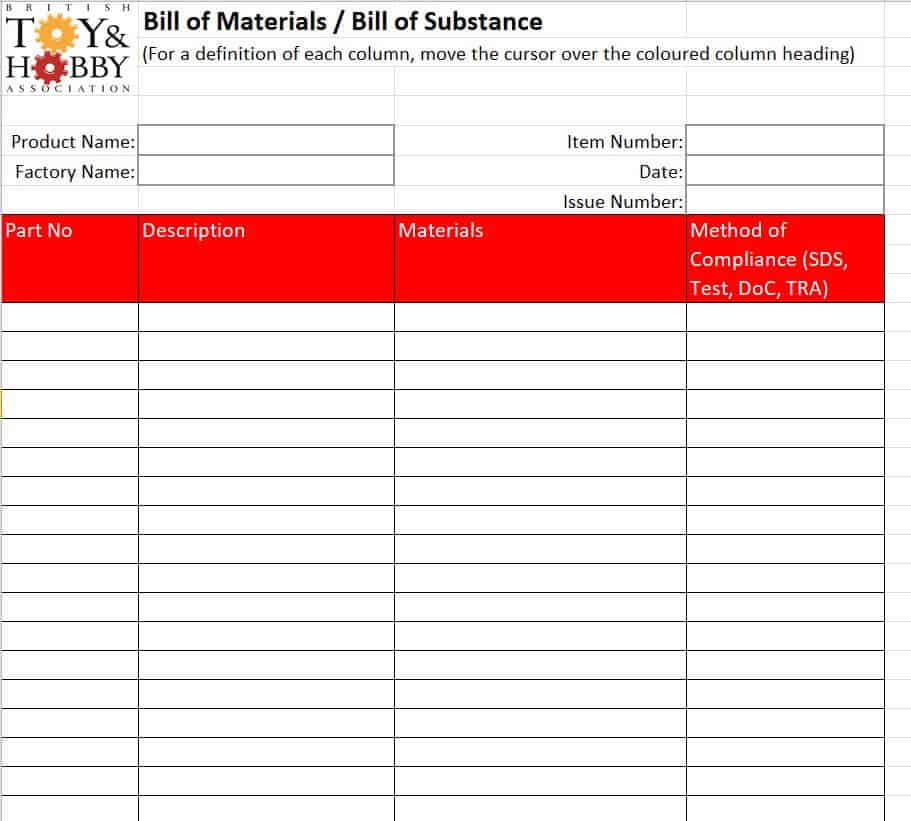
File Size: 618 KB
File Type: MS EXCEL
Simple Bill of Materials (BOM) Template
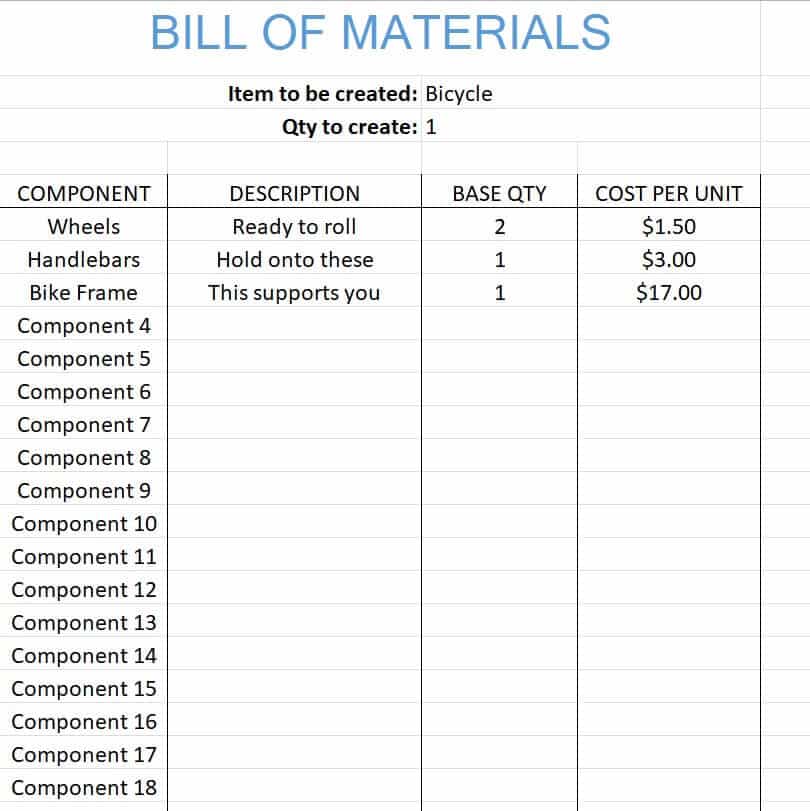
File Size: 10 KB
File Type: MS EXCEL
Basic Bill of Materials (BOM) Template
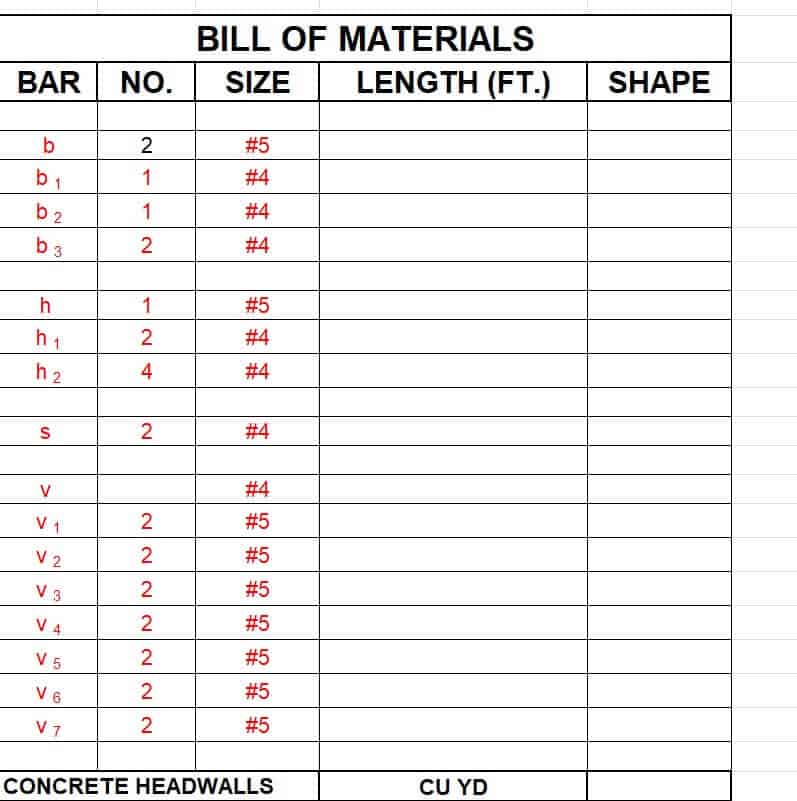
File Size: 16 KB
File Type: MS EXCEL
Company’s Bill of Materials (BOM) Template
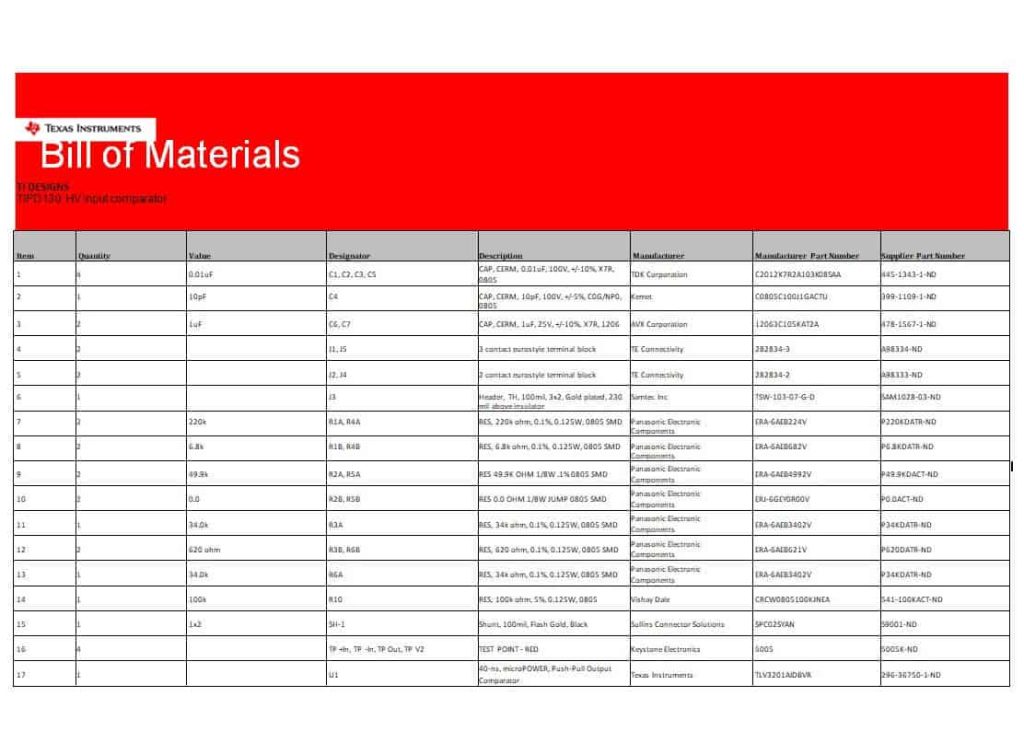
File Size: 15 KB
File Type: MS WORD
Project Bill of Materials (BOM) Template
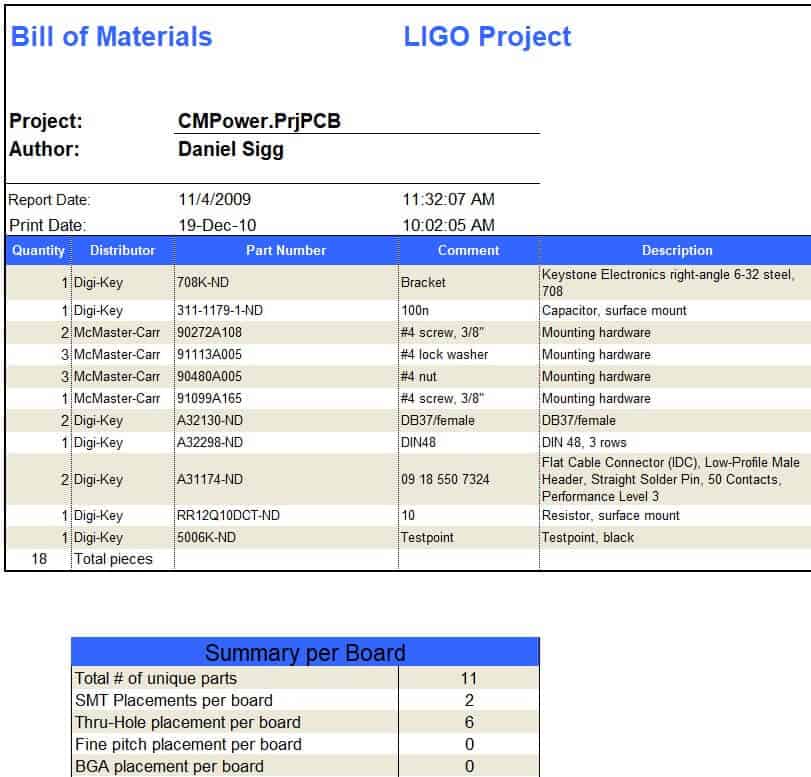
File Size: 12 KB
File Type: MS EXCEL
Editable Bill of Materials (BOM) Template
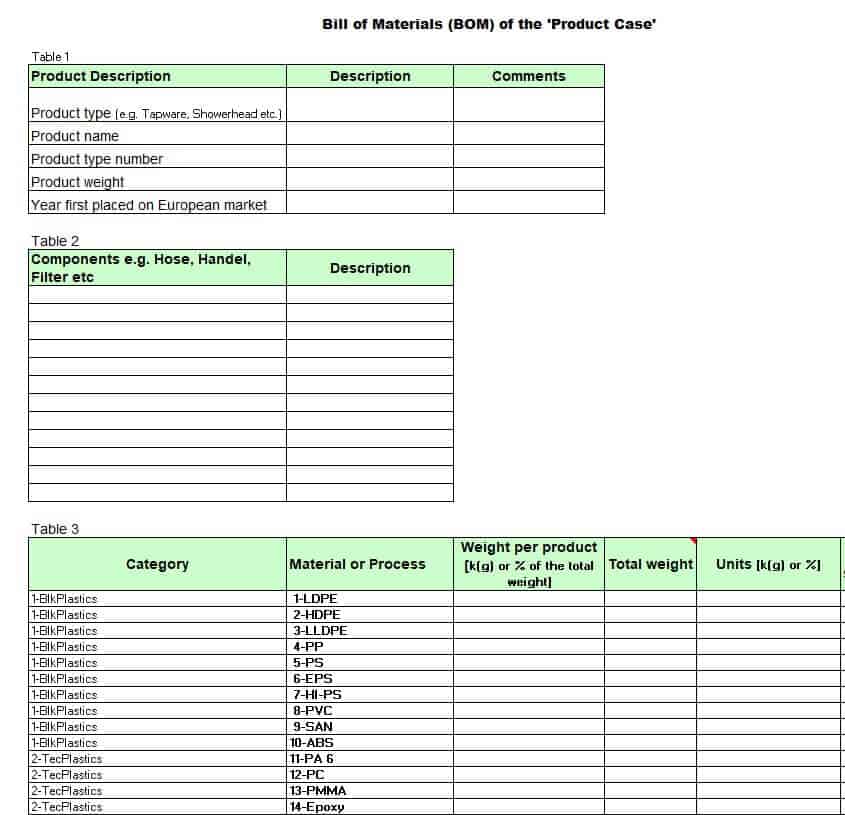
File Size: 162 KB
File Type: MS EXCEL
Single Level Bill of Materials (BOM) Template

File Size: 352 KB
File Type: MS EXCEL
Example Bill of Materials (BOM) Template
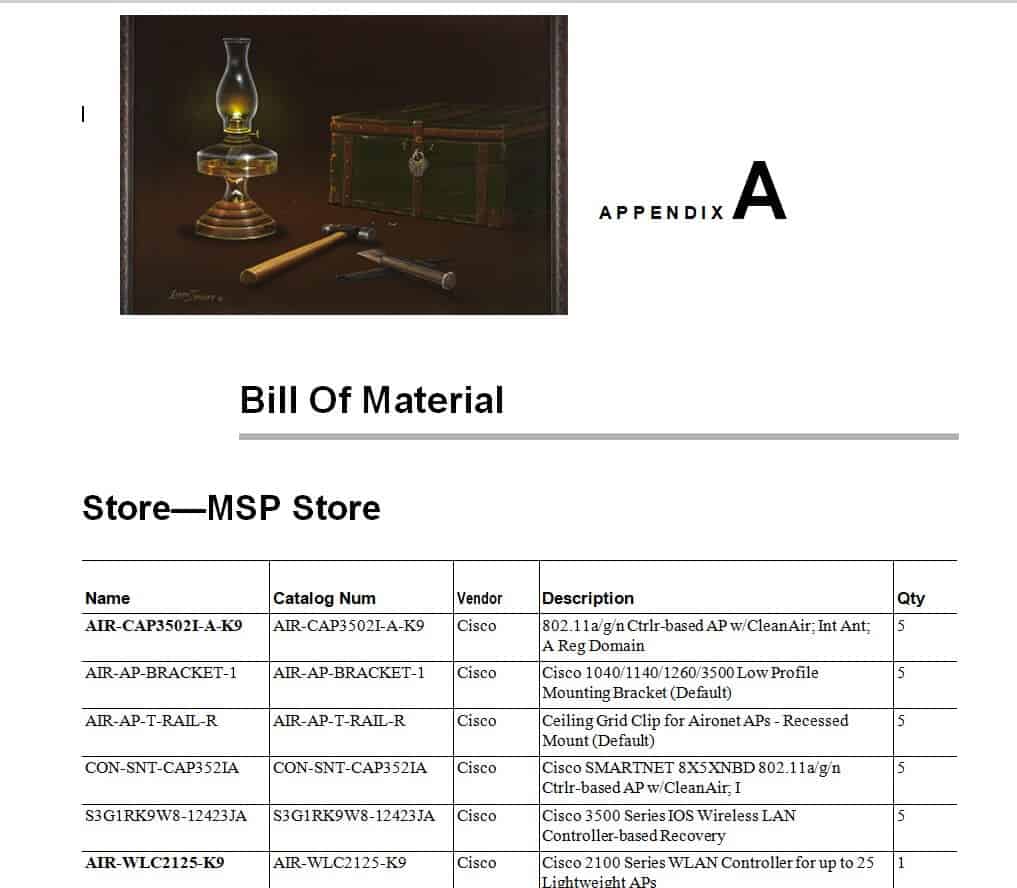
File Size: 270 KB
File Type: MS WORD
Professional Bill of Materials (BOM) Template
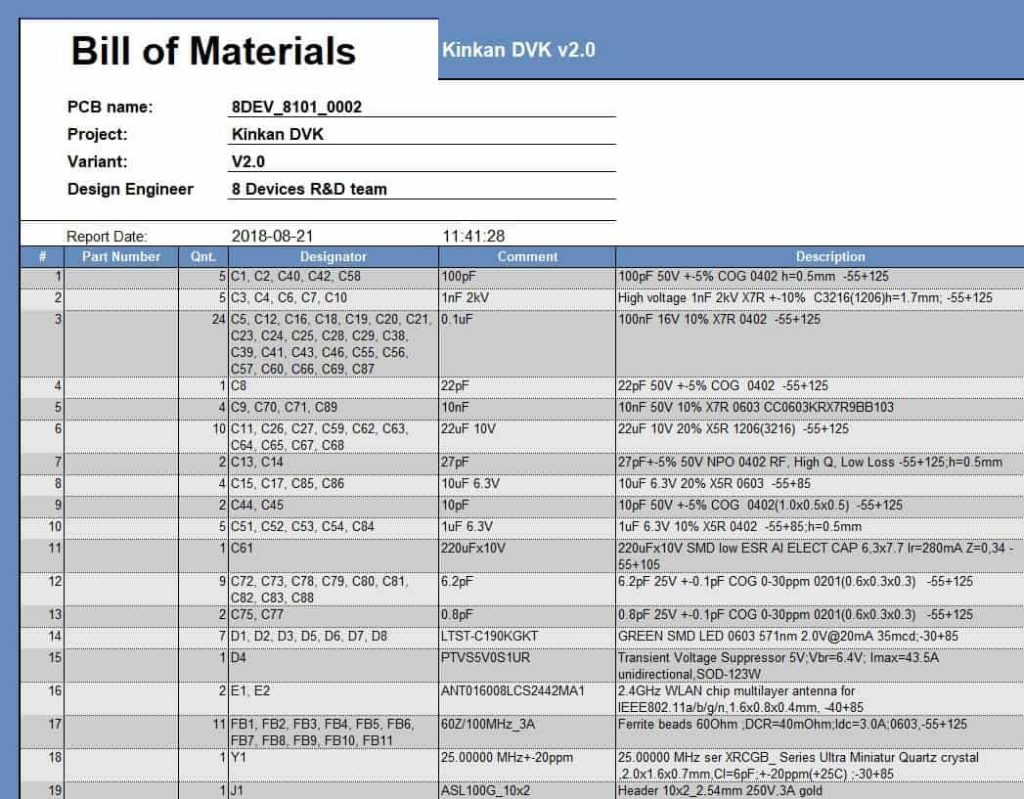
File Size: 23 KB
File Type: MS EXCEL
Bill of Materials (BOM) Format Template
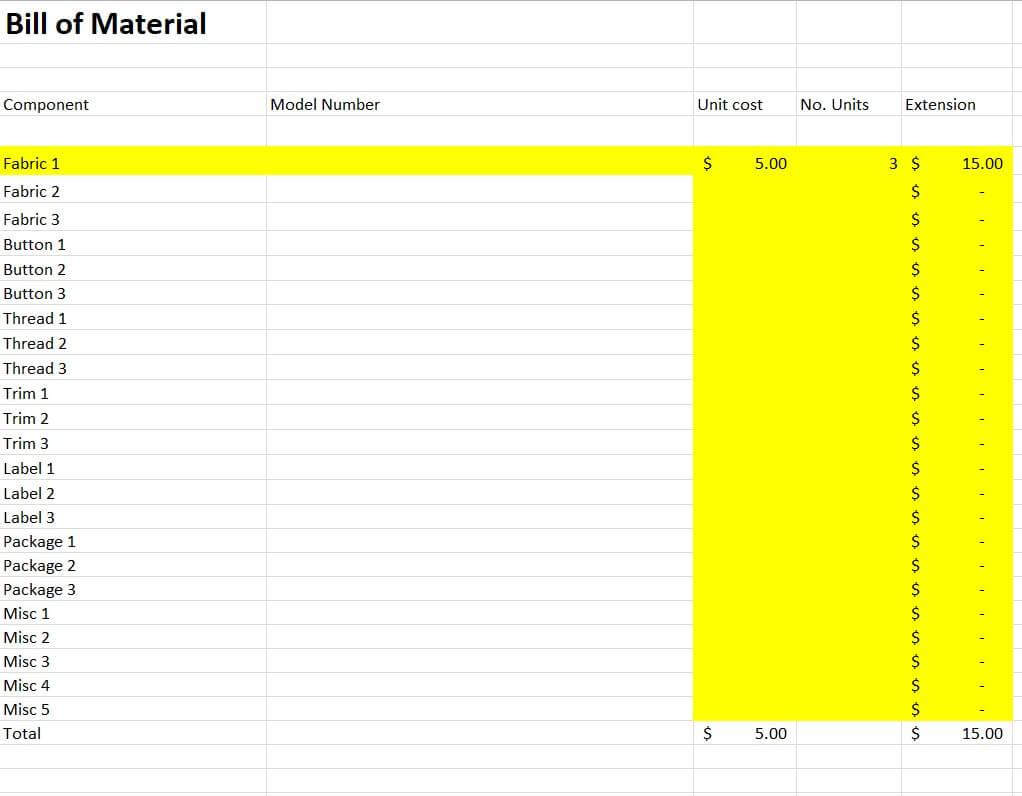
File Size: 62 KB
File Type: MS EXCEL
More BOM Templates
Multi Level Bill of Materials (BOM) Template
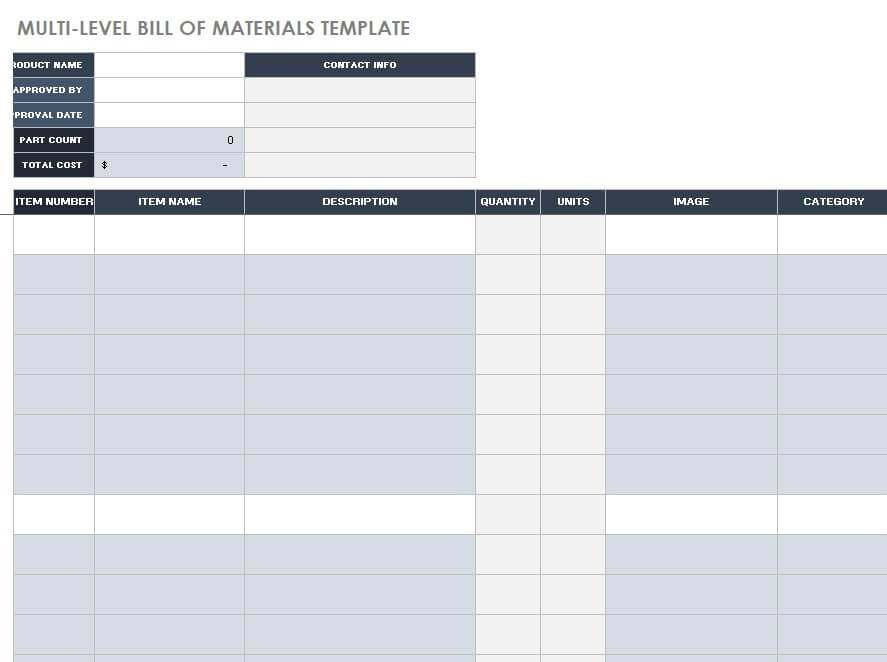
File Size: 356 KB
File Type: MS EXCEL
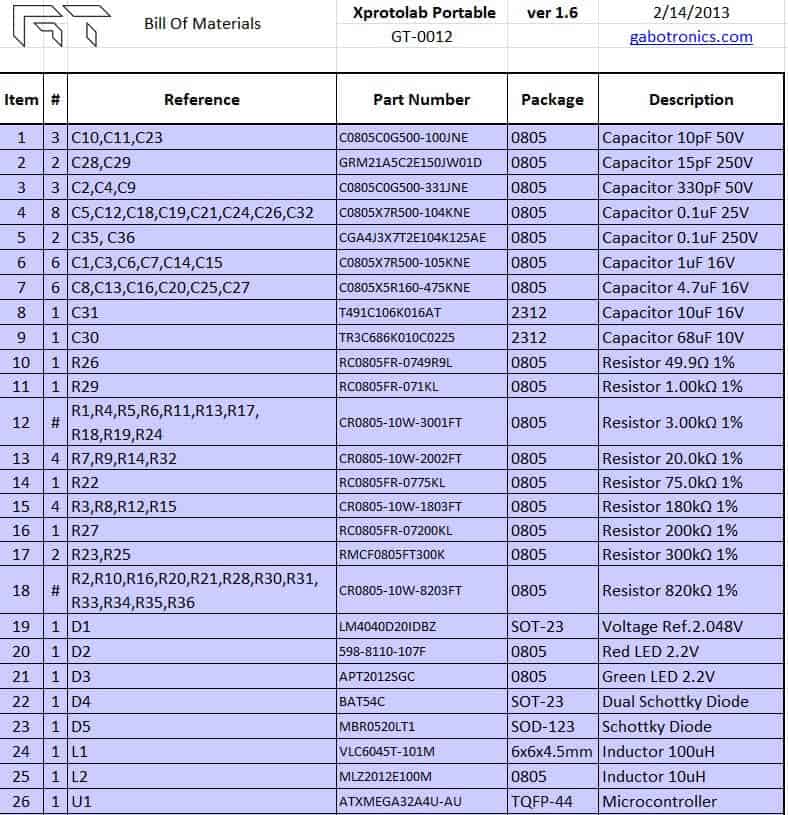
Modular Bill of Materials (BOM) Template
File Size: 16 KB
File Type: MS EXCEL
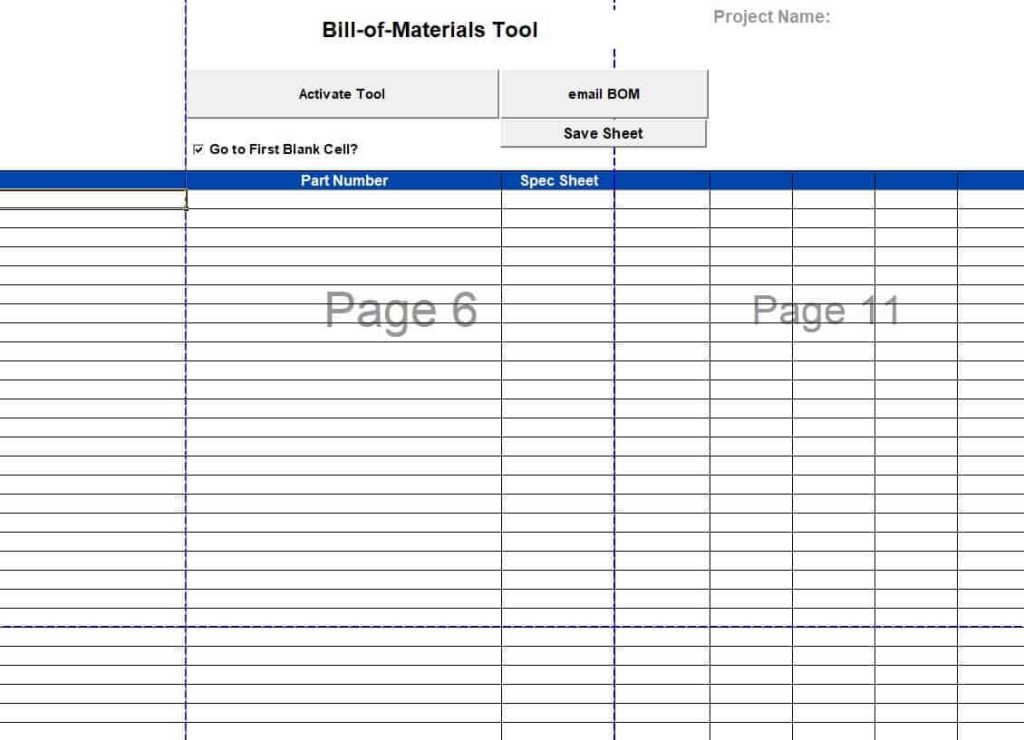
Bill of Materials (BOM) Tool Template
File Size: 4 MB
File Type: MS EXCEL
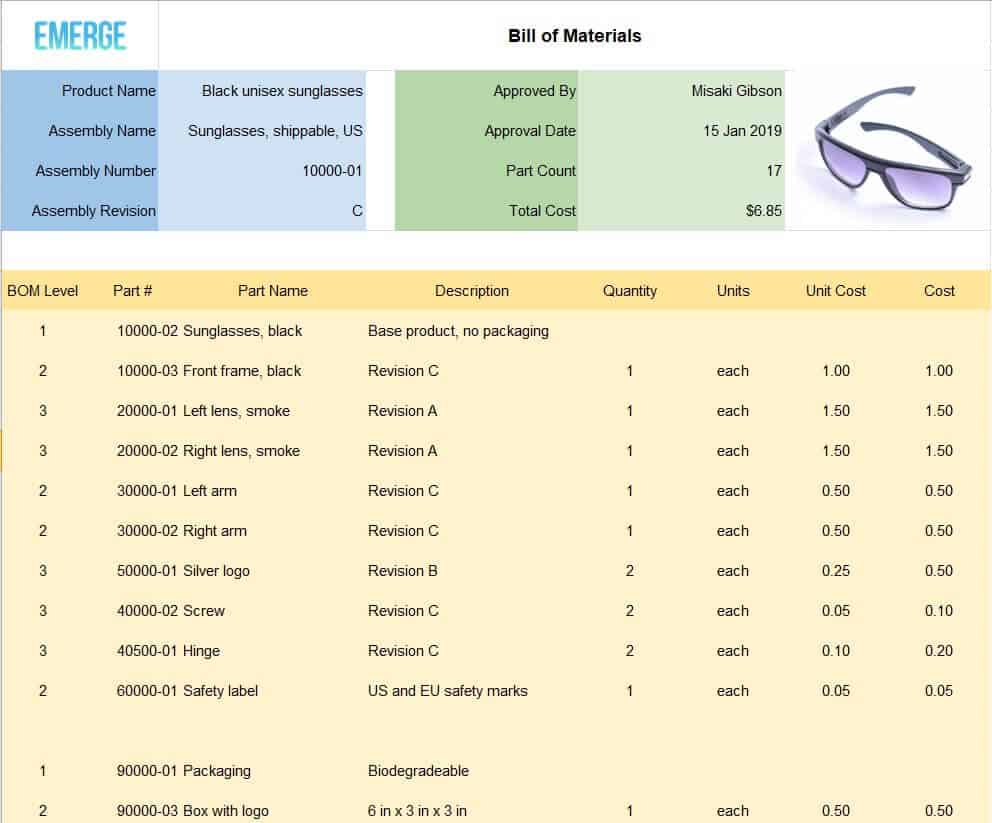
Official Bill of Materials (BOM) Template
File Size: 47 KB
File Type: MS EXCEL
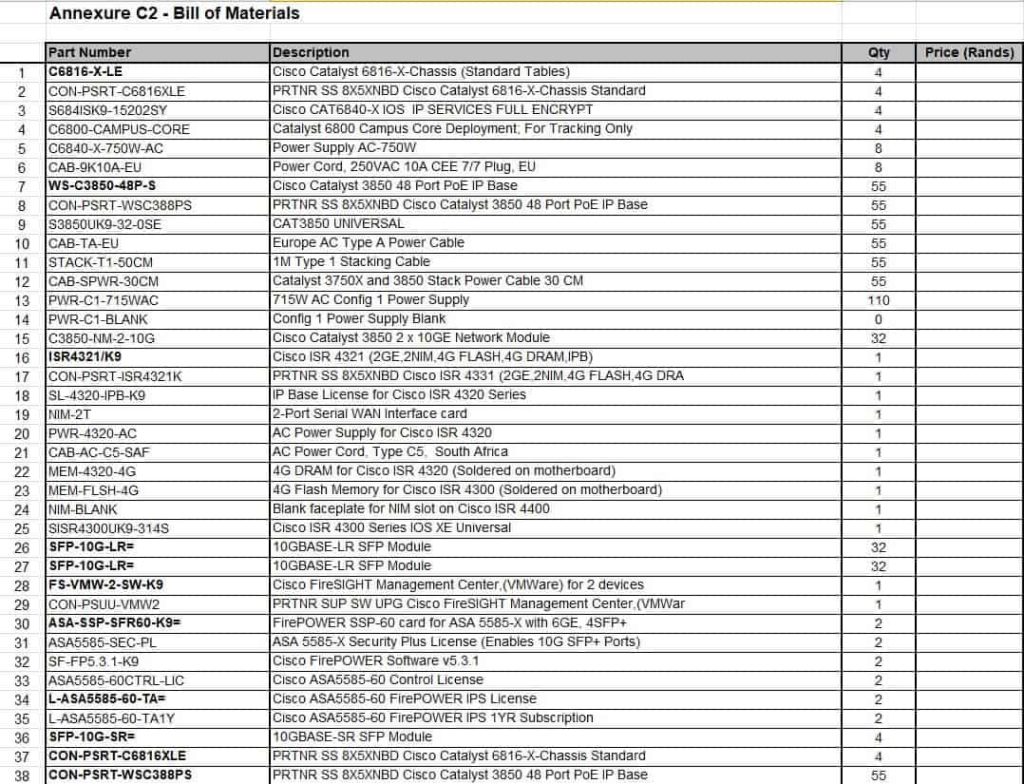
Manufacturing Bill of Materials (BOM) Template
File Size: 35 KB
File Type: MS EXCEL
Sample Costed Bill of Materials (BOM) Template
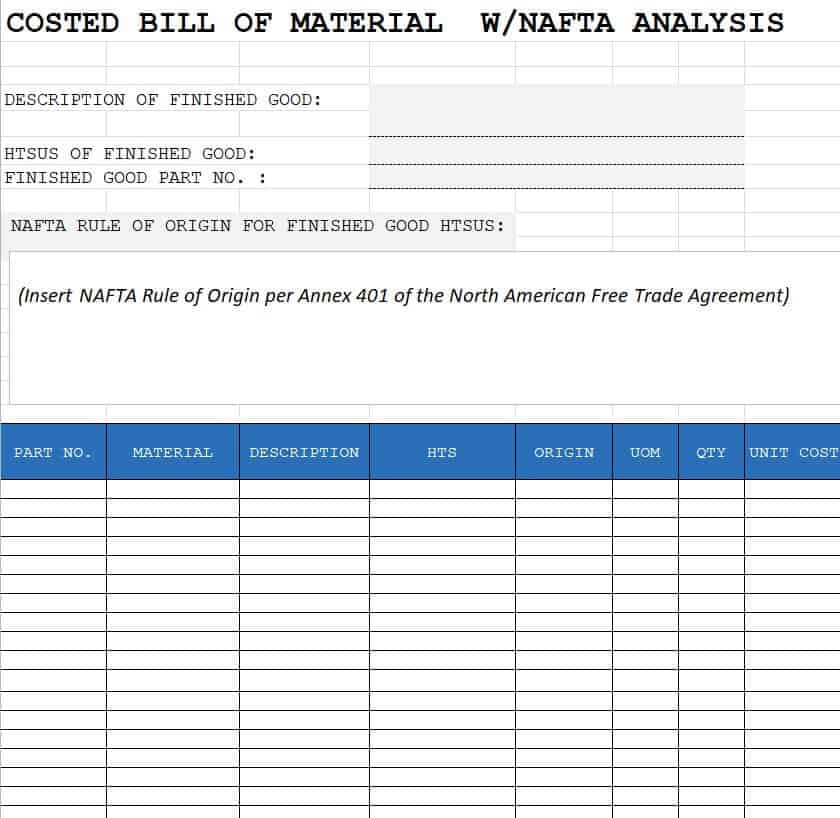
File Size: 17 KB
File Type: MS EXCEL
Equipment Bill of Materials (BOM) Template
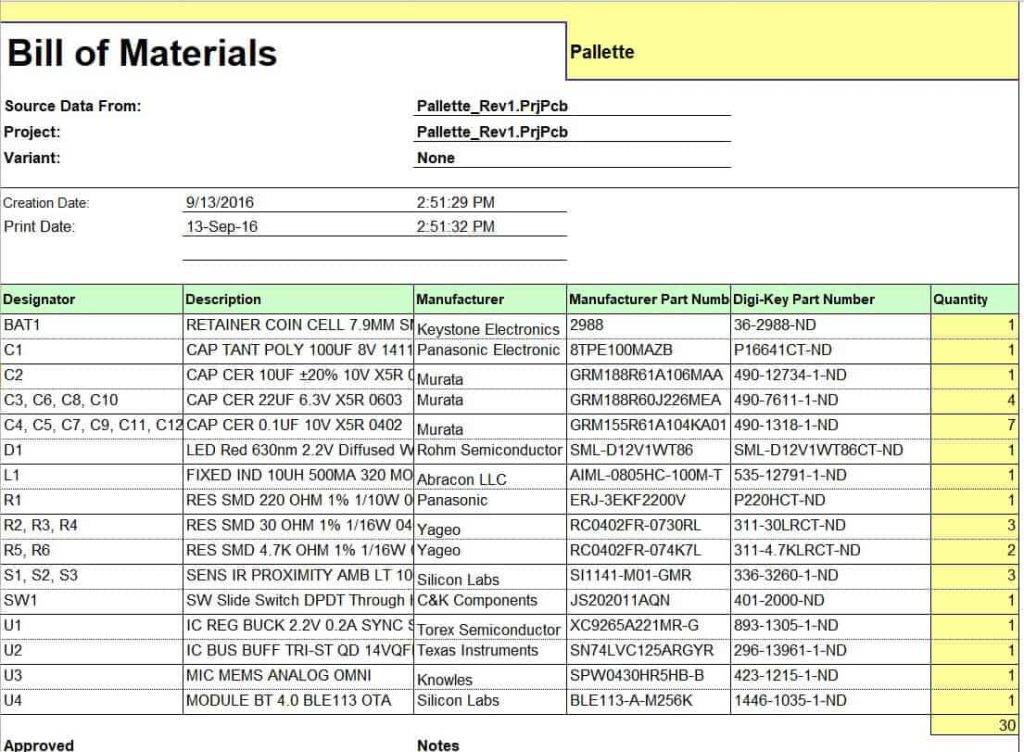
File Size: 11 KB
File Type: MS EXCEL
Bill of Materials (BOM) Template with Images
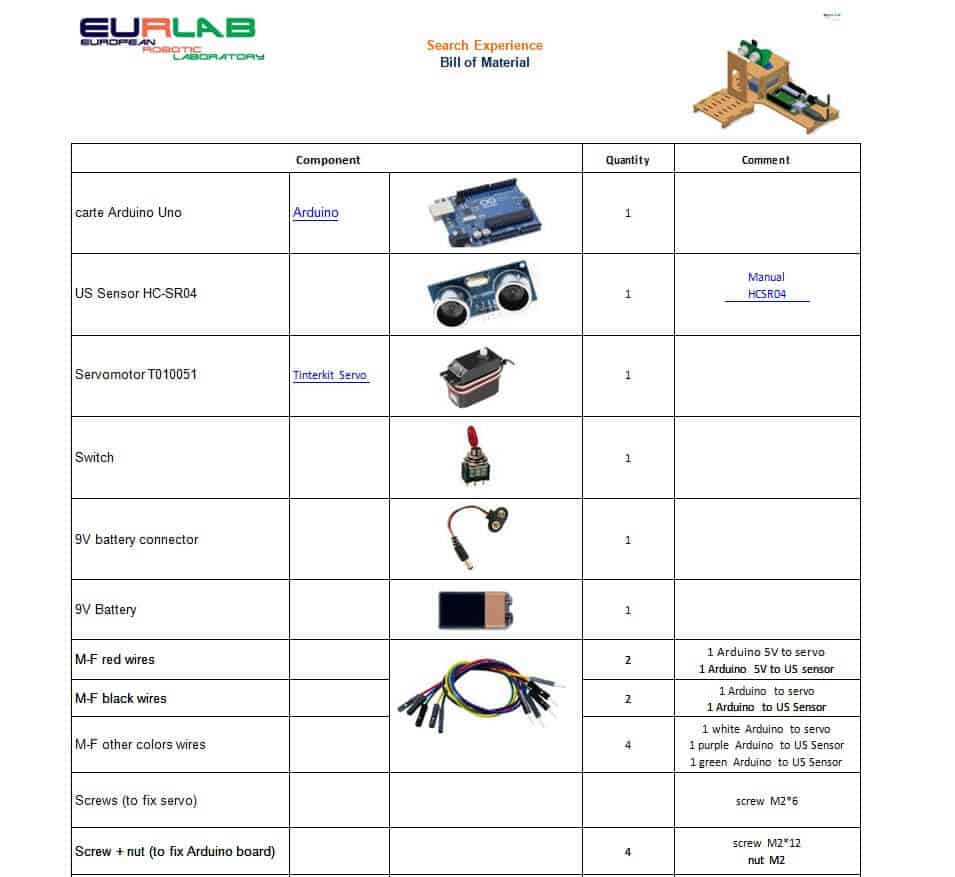
File Size: 130 KB
File Type: MS WORD
Proper Bill of Materials (BOM) Template
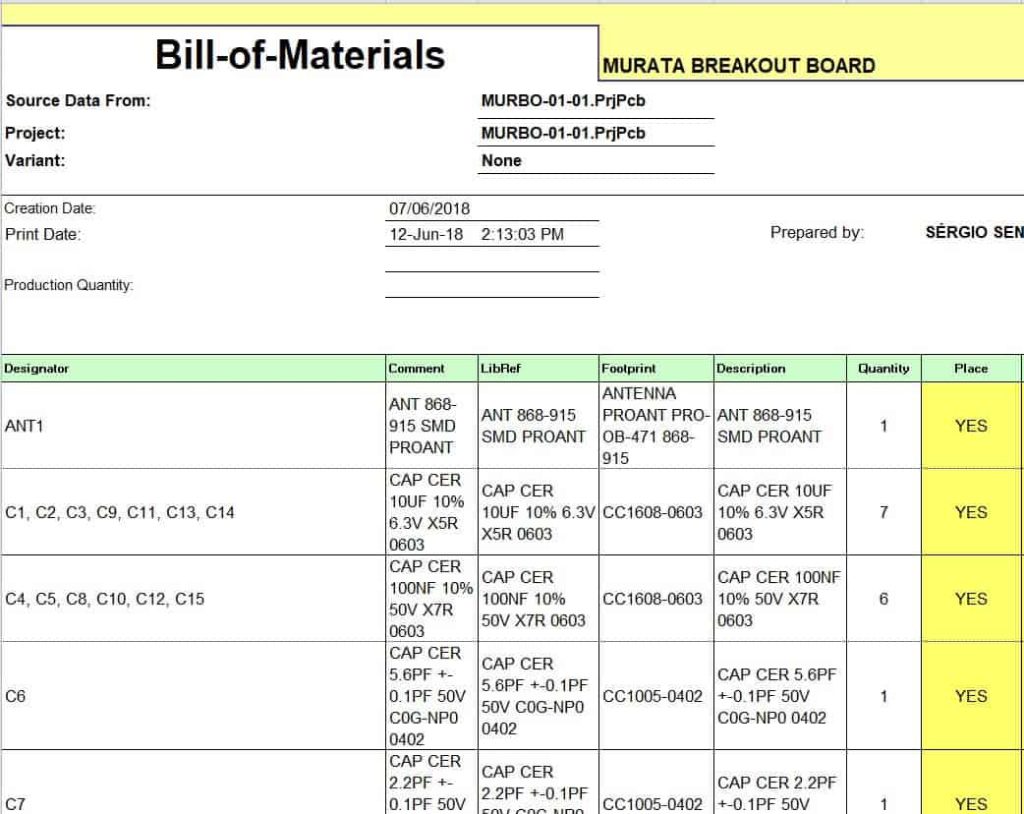
File Size: 24 KB
File Type: MS EXCEL
Customizable Product’s Bill of Materials (BOM) Template
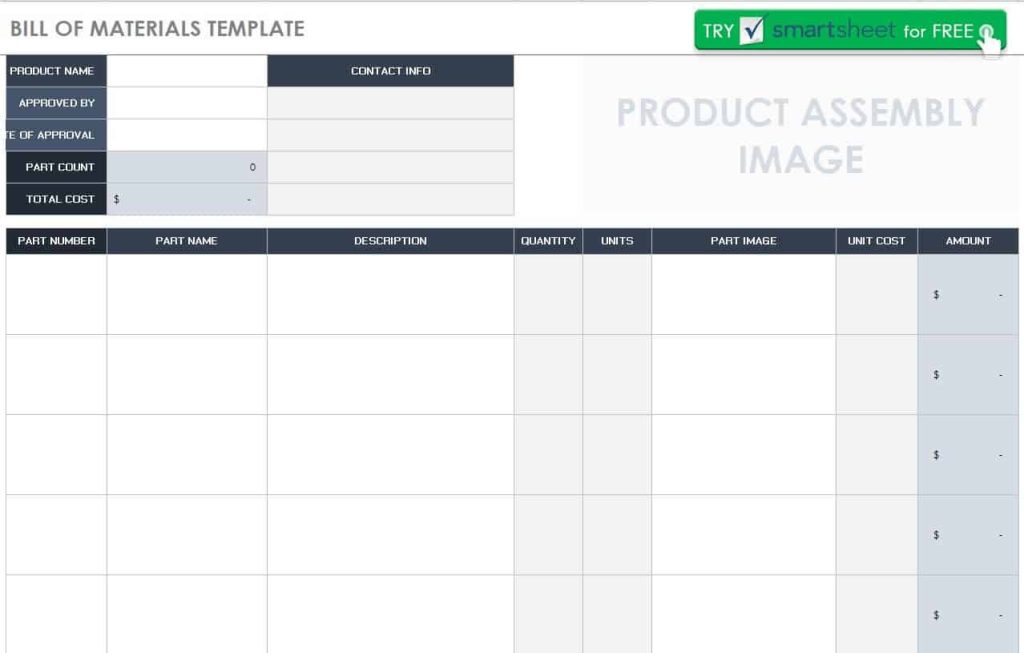
File Size: 54 KB
File Type: MS EXCEL
Standard Bill of Materials (BOM) Template
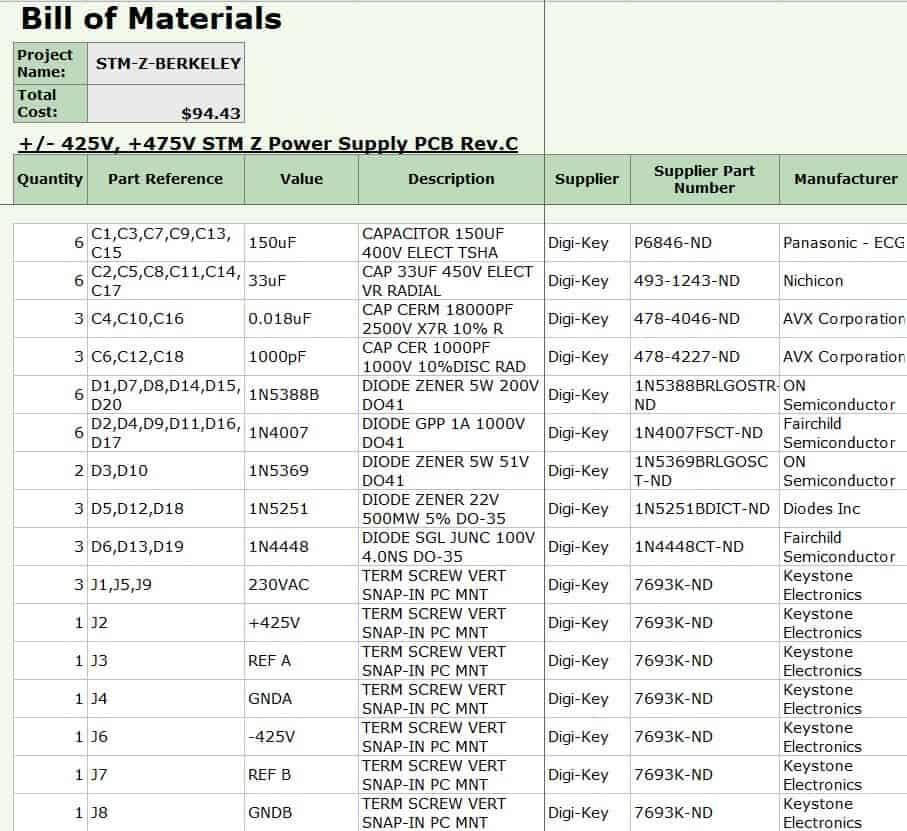
File Size: 13 KB
File Type: MS EXCEL
Elemental Bill of Materials (BOM) Template
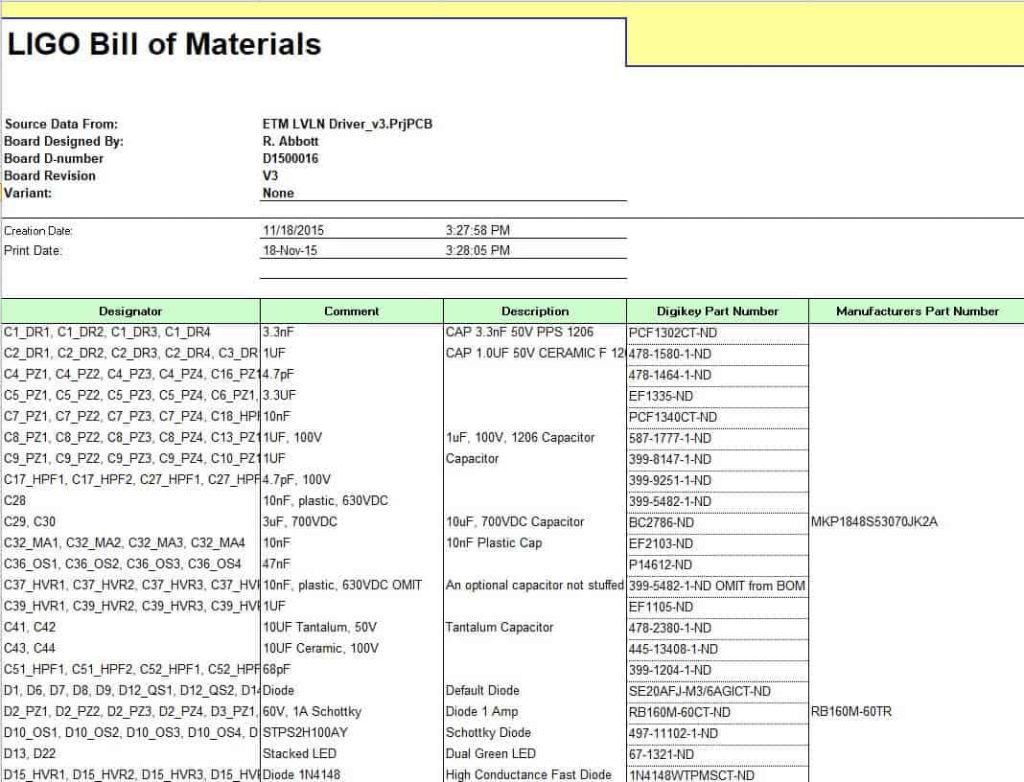
File Size: 17 KB
File Type: MS EXCEL
Frequently Asked Questions (FAQ)
What is the difference between an EBOM and an MBOM?
An Engineering Bill of Materials (EBOM) focuses on product design architecture as defined by CAD software and design specifications. A Manufacturing Bill of Materials (MBOM) includes all components needed to build a finished, shippable product, including packaging, adhesives, assembly tools, and shop-floor consumables omitted from the engineering phase.
Why is version control critical in a BOM template?
As engineering updates occur, component specifications change. Without strict version control, procurement teams risk purchasing outdated components, leading to material waste, assembly errors, and unexpected downtime.
Can I track manufacturing costs using an Excel BOM template?
Yes. By adding fields for Unit Cost, Quantity, and applying automated formulas (=Quantity * Unit Cost), an Excel BOM template automatically calculates total component costs, total sub-assembly costs, and the overall Cost of Goods Sold (COGS).
How does a multi-level BOM handle sub-assemblies?
A multi-level BOM uses indented structural numbering (e.g., Level 0 for final product, Level 1 for sub-assemblies, Level 2 for child components) to visualize how sub-components nest within larger modular sections before final integration.
Who is responsible for maintaining the BOM?
Engineering usually owns the EBOM, while production or operations maintains the MBOM. In small businesses, one person often manages both, so a clear revision number and change log on every version is essential.
A BOM connects design, purchasing and finance. Use our material list templates for simpler projects such as construction or renovation jobs, record supplier bills for each component with these purchase invoice templates, monitor component stock levels with our stock report templates, and turn your BOM cost into a pricing plan with the new product sales and profit forecasting templates.
Final Thoughts
An accurate bill of materials is the foundation of reliable production, purchasing and product costing. Download any of the free Excel or Word BOM templates above, list every part with its quantity and cost, and keep the file under version control so your whole team always builds from the same, up-to-date recipe.